
How to Create a Pay Application for a Custom Home (Step by Step)
Summary
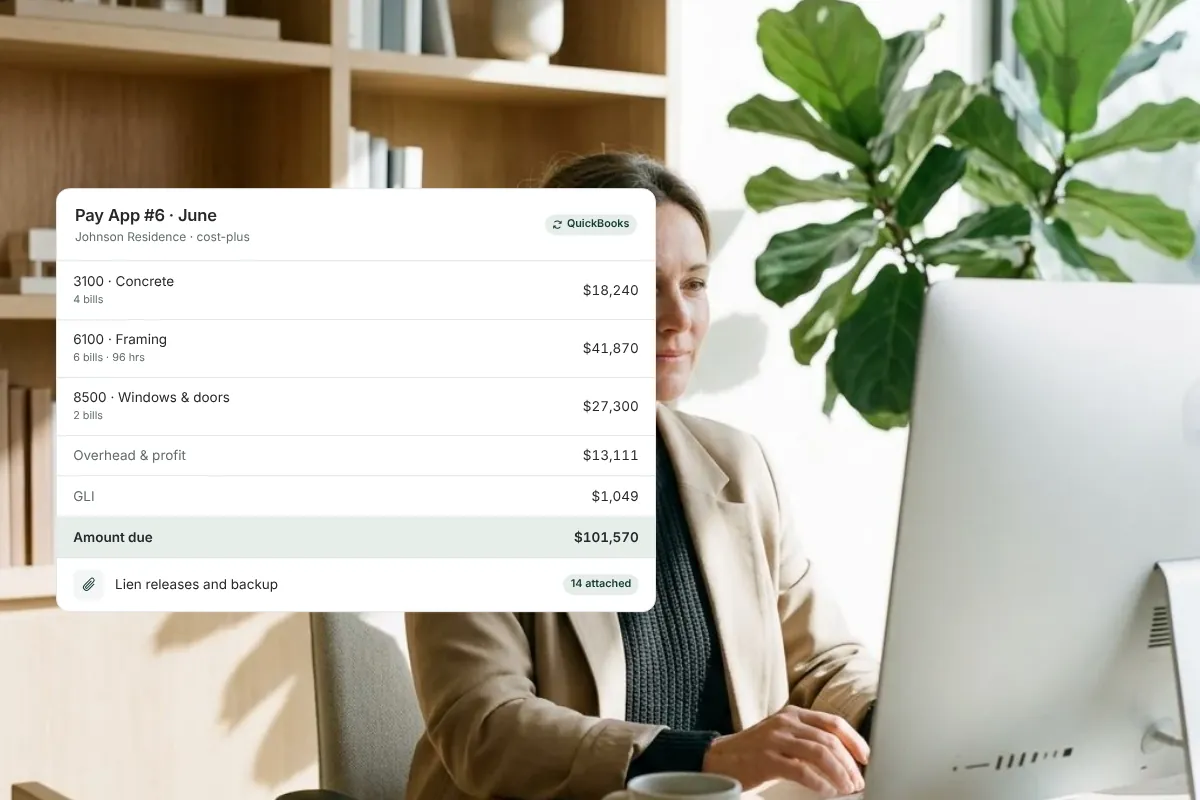
A strong pay application on a custom home starts with the backup, not the form: every invoice, timesheet and lien release tied to a cost code and the current budget. This guide walks through gathering that documentation, building the schedule of values and summary, and presenting it so the owner can see exactly what they’re paying for.
On this page
- Key takeaways
- What is a pay application on a custom home?
- Step 1: Collect every cost for the period
- Step 2: Verify and code each item to the budget
- Step 3: Build the schedule of values
- Step 4: Apply change orders, budget revisions, previous payments and retainage
- What are AIA G702 and G703, in plain language?
- Step 5: Present it so the owner understands what they’re paying for
- Lender draws: one more reviewer, same backup
- How Ally builds pay applications from project data
- Frequently asked questions
To create a pay application for a custom home, start by collecting the supporting documentation for the period — vendor invoices, timesheets, labor charges and lien releases — and tie each item to a cost code in the current budget. Then summarize the billing by line (a schedule of values), apply previous payments and retainage, and send the owner one package where every number traces back to its backup.
Key takeaways
- On a cost-plus custom home, the hard part of a pay app isn’t the form. It’s collecting, verifying and organizing the backup behind it.
- Every dollar billed should trace to a cost code, a document (invoice, timesheet, receipt) and, where it applies, a lien release.
- The standard elements — schedule of values, percent complete, retainage, previous payments, change orders and budget revisions — are the summary, not the substance.
- AIA G702/G703-style formats are a useful structure, but owners mostly want to understand what they’re paying for.
- Building the pay app from data already in the project, with backup attached, protects the contractor and keeps the owner informed.
What is a pay application on a custom home?
A pay application (often shortened to “pay app” or “draw request”) is the contractor’s formal request for payment for work completed during a billing period. It shows what’s being billed this period, what has been billed before, what’s being held as retainage, and what remains on the contract or budget.
On a fixed-price job, a pay app is mostly a progress statement: how far along is each line of the schedule of values, and what percentage of that line’s value is due. On a cost-plus custom home, it’s closer to an accounting of actual costs: the owner is reimbursing what the work really cost, plus the agreed fee. That changes what the owner needs to see. A percentage on a line item isn’t enough. They want the invoices, the labor hours and the proof that subs and suppliers have been paid.
That’s why the most useful way to think about a custom home pay app is as a documentation package with a summary on top.
Step 1: Collect every cost for the period
Before you open a template, gather everything that belongs in this draw. On a busy custom home that can mean dozens or hundreds of documents per month:
- Vendor and subcontractor invoices for materials, equipment and subcontracted work.
- Timesheets and labor charges for your own crews, with hours by person, date and task or cost code.
- Receipts and small purchases charged to the job (lumber yard runs, hardware, rentals).
- Lien releases from subs and suppliers for amounts paid in prior draws, and conditional releases for amounts in this one, according to your contract and state requirements.
- Approved change orders and budget revisions that changed what can be billed.
The goal is completeness. A missing invoice found after the pay app goes out means either a late correction or a cost that slips into next month, which makes your numbers harder for the owner to trust. For more on the release side, see our guide on how to collect and track lien releases from subs and suppliers.
Step 2: Verify and code each item to the budget
Each cost should be checked and assigned to a cost code before it’s billed:
- Check it against the commitment. Does the invoice match the subcontract, purchase order or awarded bid? Are quantities and unit prices right?
- Confirm the work was done. Billing for materials not yet delivered or work not yet in place is a common source of disputes.
- Assign the cost code. Framing, electrical, cabinetry, general conditions — whatever structure your budget uses.
- Check it against the current budget. If a line is about to exceed its budget, you want to know before the owner does, and you want the approved change order or budget revision that covers it (see change orders vs. budget revisions).
This is the step that makes the pay app defensible. When an owner asks, “What is this $14,200 for?”, you can answer with the invoice, the cost code and the approval behind it.
Step 3: Build the schedule of values
The schedule of values (SOV) breaks the contract or budget into lines, usually by cost code or trade. For each line, the pay app shows the scheduled value, what was billed in previous periods, what’s billed this period, the total to date, the percent complete and the balance remaining.
| Line | Scheduled value | Previous | This period | Total to date | % complete | Balance |
|---|---|---|---|---|---|---|
| Framing | $186,000 | $120,000 | $48,000 | $168,000 | 90% | $18,000 |
| Rough electrical | $62,000 | $18,000 | $26,000 | $44,000 | 71% | $18,000 |
| Windows and exterior doors | $94,000 | $47,000 | $0 | $47,000 | 50% | $47,000 |
| General conditions | $110,000 | $44,000 | $11,000 | $55,000 | 50% | $55,000 |
Example figures only. On a cost-plus job, “this period” on each line should equal the verified costs coded to that line, not an estimate of progress. On a fixed-price job, it reflects the percentage of the line’s value earned.
Step 4: Apply change orders, budget revisions, previous payments and retainage
With the line detail in place, the summary rolls up:
- Original contract sum or budget, plus approved change orders and budget revisions, gives the current contract sum or current budget. Keep them separate so the owner can see which changes they requested and which were revisions to the estimate.
- Total completed and stored to date comes from the SOV.
- Retainage is withheld as the contract requires (see retainage in residential construction).
- Less previous payments gives the current payment due.
- The contractor’s fee on cost-plus work is calculated as the contract specifies, for example a percentage of costs this period.
Pending changes that haven’t been approved should not be billed. List them separately if it helps the owner see what’s coming.
What are AIA G702 and G703, in plain language?
The American Institute of Architects (AIA) publishes standard pay application forms widely used in commercial construction and sometimes on larger residential projects:
- G702 (Application and Certificate for Payment) is the one-page summary: original contract sum, net change by change orders, contract sum to date, total completed and stored, retainage, previous certificates, and current payment due. It also has a place for the architect to certify the amount.
- G703 (Continuation Sheet) is the line-by-line schedule of values that supports the G702 numbers.
Many residential builders use a “G702/G703-style” format without the official AIA documents: a summary page plus a line-item sheet. That structure works well for custom homes, especially when a lender or architect is involved. Just remember that the forms describe the totals. On a cost-plus job, the owner’s confidence comes from the backup behind them.
Step 5: Present it so the owner understands what they’re paying for
A pay app can be accurate and still create friction if the owner has to dig for answers. Before sending, check that the package:
- Opens with a one-page summary in plain language.
- Shows each line’s current budget next to what’s billed, so the owner sees the financial position, not just this month’s number.
- Attaches invoices, timesheets and lien releases in the same order as the lines they support.
- Calls out anything unusual: a line approaching its budget, a large stored-materials item, a revision approved since the last draw.
Owners who can see the documentation rarely argue about it. Owners who receive a total with no backup tend to ask questions, and each round of questions delays payment and erodes trust. Our post on preparing accurate, fully documented pay applications includes a pre-submission checklist.
Lender draws: one more reviewer, same backup
If the owner has a construction loan, the lender (often through a draw inspector) will also review the pay app. They typically confirm the work in place matches the percent complete, check that lien releases are in hand, and verify the math against their own budget for the loan. A pay app built on organized backup by cost code usually satisfies the lender with the same package you send the owner, plus whatever forms the lender requires.
How Ally builds pay applications from project data
Ally builds pay apps from data that’s already in the project instead of a separate spreadsheet, and it’s designed around cost-plus billing. Vendor bills and timesheet entries are coded to cost codes as they come in, so each pay app pulls the period’s bills and labor (hours × rate, by cost code), applies the contract’s markup and GLI, and accounts for changes to deposits held. Lien releases signed by vendors since the last pay app are included, along with any other documents you want the owner to see.
The owner reviews the pay app online with its backup and can pay through a QuickBooks payment link, and the invoice syncs to QuickBooks Online. It significantly cuts the admin time of assembling backup by hand, and more importantly, it gives the owner a clear view of the project’s financial position every time they pay. See how Ally’s pay application software works.
Frequently asked questions
What should be included in a pay application for a custom home?
A summary page (current contract sum or budget, total completed to date, retainage, previous payments and current payment due), a schedule of values by line, approved change orders and budget revisions, and the supporting documentation: invoices, timesheets, receipts and lien releases tied to cost codes. On cost-plus work, the backup matters as much as the totals.
What is a schedule of values in home construction?
A schedule of values breaks the contract or budget into line items, usually by trade or cost code, each with a scheduled dollar value. Each pay app shows what has been billed against every line to date, this period’s billing, the percent complete and the remaining balance, so the owner can follow progress line by line.
Do residential builders have to use AIA G702 and G703 forms?
Not usually. AIA forms are standard in commercial work and some lenders or architects ask for them, but many residential builders use a G702/G703-style format of their own: a summary page and a line-item continuation sheet. Check your contract and any lender requirements for the format you need.
How is a cost-plus pay application different from a fixed-price one?
On a fixed-price contract, billing reflects the percentage of each line’s value earned. On a cost-plus contract, the owner reimburses actual costs plus the agreed fee, so each line should equal verified, documented costs for the period. That makes invoices, timesheets and lien releases the core of the cost-plus pay app.
How often should a builder submit a pay application?
Most custom home contracts set a monthly billing cycle, though some use milestones or a lender’s draw schedule. Whatever the cadence, submitting on a consistent date with complete backup helps the owner plan and keeps payments predictable.
Want to see a pay app built from real project data? Book a demo and we’ll walk through one with you.
Related resources
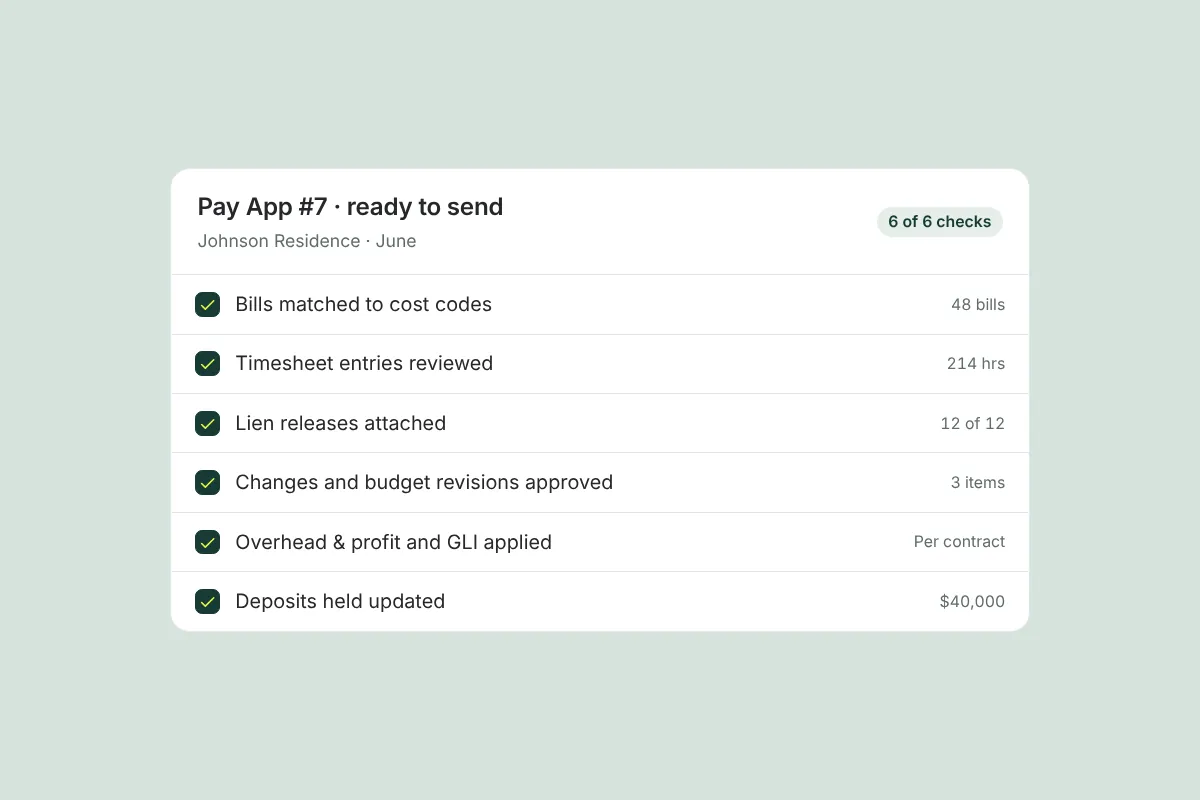
How to Prepare Accurate, Fully Documented Pay Applications
A pre-submission checklist for custom home pay applications: matched invoices, lien releases, approved changes, honest percent complete and clean math.

Retainage in Residential Construction: How It Works and How to Track It
Retainage is a share of each payment held back until the work is complete. Learn typical rates, when it’s released and how to track it on a custom home.

How to Collect and Track Lien Releases from Subs and Suppliers
Learn how to collect and track lien releases from subs and suppliers on every job, so you never close out a project with an unresolved lien hanging over it.
Get started with Ally
Start with one project and expand as your business grows. No hidden fees, no long-term contracts.